Why add your cards?
When you prepare a top-up, you want to know if your card will be accepted and at what rate. In the next version, you will be able to save your charging cards in Bornage to find this information more easily.
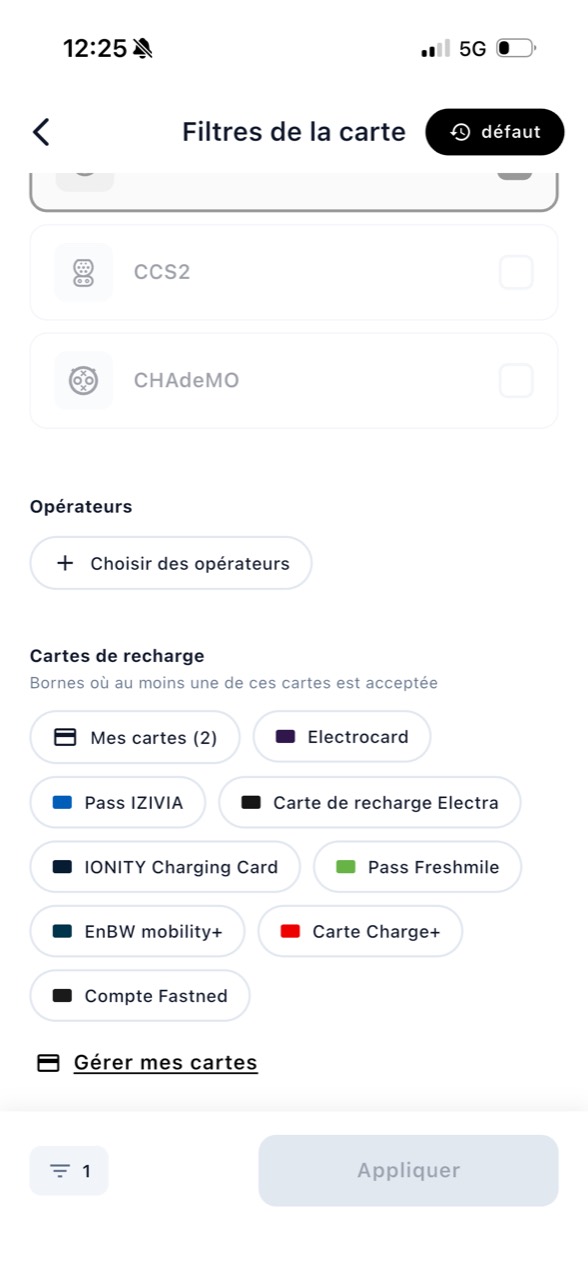
On a charging station card, the app will indicate whether your card is accepted. The cost estimate will take into account the price linked to this card. On the map, you can also display only the charging stations compatible with your charging cards.
Bornage does not ask you for the number written on the map. The app only needs to know which charging service you use.
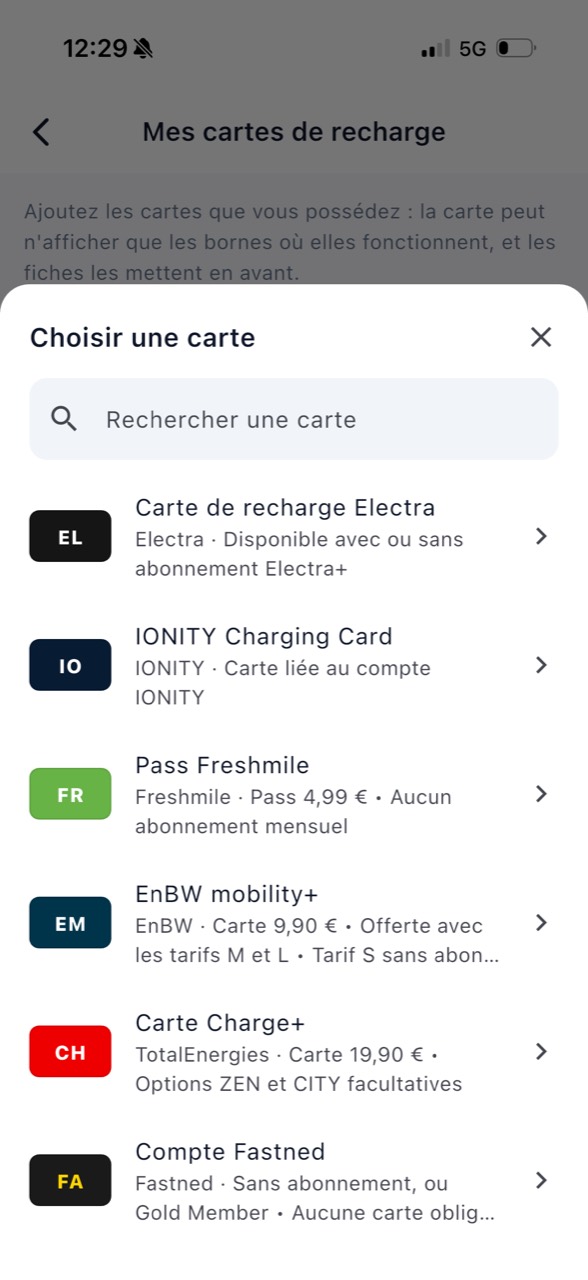
Add a card, step by step
- Open Settings.
- Choose My charging cards.
- Press Add a card.
- Select your card from the catalog.
- Choose the associated country.
- Add your plan, if you have one.
- Give him a nickname if you want.
Keep your cards up to date
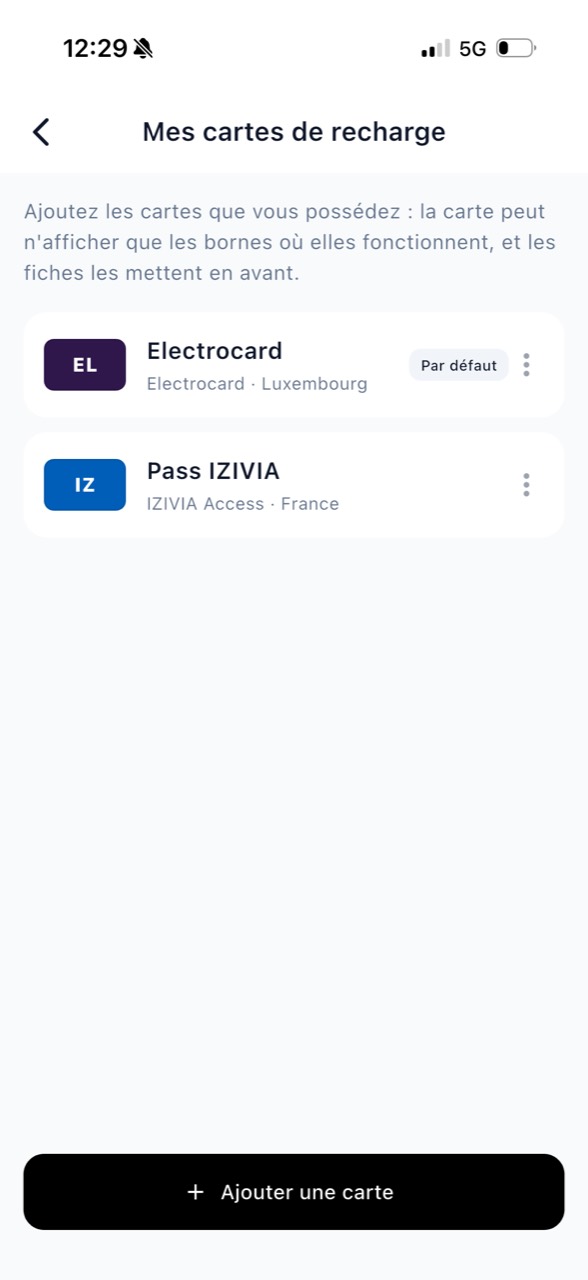
You will be able to set a default card, rename a card or remove it. This is handy if you use multiple networks or if your plan changes.
With or without account
You can add your cards even without a Bornage account. They will be stored on your phone. When you log in to your account, they will be attached to it.
charging stations will be able to recognize the maps you use and help you find the charging stations where they work.
Download Bornage or update the app to find your charging cards and compatible charging stations.